Calendar help
Calendar settings drawer
Use the Calendar Settings drawer to tune how the management calendar looks and behaves without changing the company booking rules. These settings are stored per staff member and per platform, so each user can keep a separate calendar layout for the device or platform they work on.
Choose the starting calendar layout
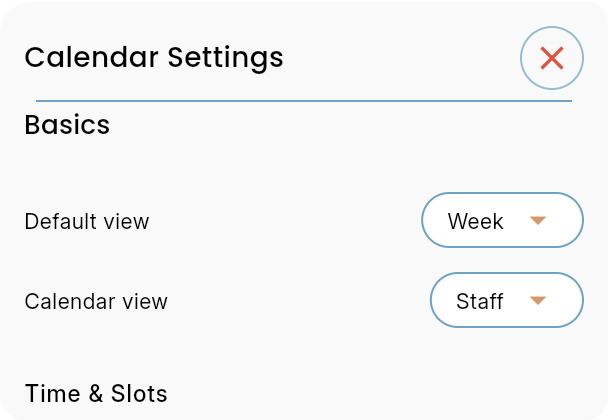
The Basics section defines which calendar view opens by default and how appointments are grouped on screen.
- Default viewdecides whether the calendar opens in a day, week or other supported time range. Use Week when staff wants a broader planning overview.
- Calendar viewcontrols the grouping mode. Staff view groups appointments by staff member, which is useful when multiple employees work at the same time.
- These settings should match the workflow used most often at the front desk, so the team does not need to switch views every morning.
Set how dense the planning grid feels
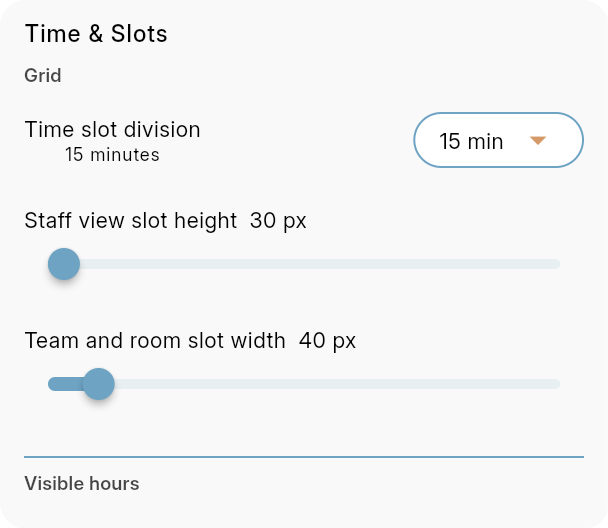
The Time & Slots settings affect the visual grid used to read, place and drag appointments. They do not shorten a service duration by themselves; they change how the schedule is displayed.
- Time slot divisionsets the timeline increments, for example 15 minutes. Smaller divisions give more precision; larger divisions create a cleaner, less busy calendar.
- Staff view slot heightchanges the vertical height of staff rows. Increase it when appointment cards need more space for service and client details.
- Team and room slot widthchanges the width of team or room columns. Use a wider value when names, resources or appointment blocks feel cramped.
Control visible hours and calendar indicators
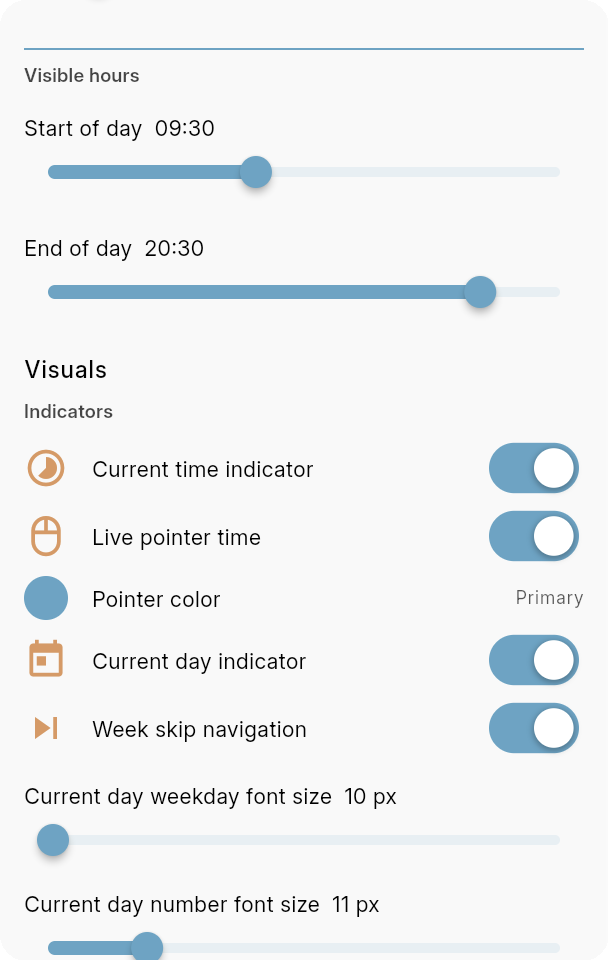
Visible hours keep the calendar focused on the working day, while indicators add visual markers that help staff understand the current moment and move through the week.
- Start of dayandEnd of daydefine the visible time range. Set these around the business day so closed hours do not take unnecessary screen space.
- Current time indicatorshows where the current time falls on the calendar, which helps staff compare upcoming and past appointments quickly.
- Live pointer timeshows the exact pointer time while moving across the calendar, useful for accurate drag and drop planning.
- Pointer colourchooses the colour used for the live pointer. Primary keeps it aligned with the Bookairy interface.
- Current day indicatormarks today in the calendar header.Week skip navigationadds faster week navigation controls.
- The current day weekday and number font size sliders tune how prominent today's label appears.
Adjust header date and clock display
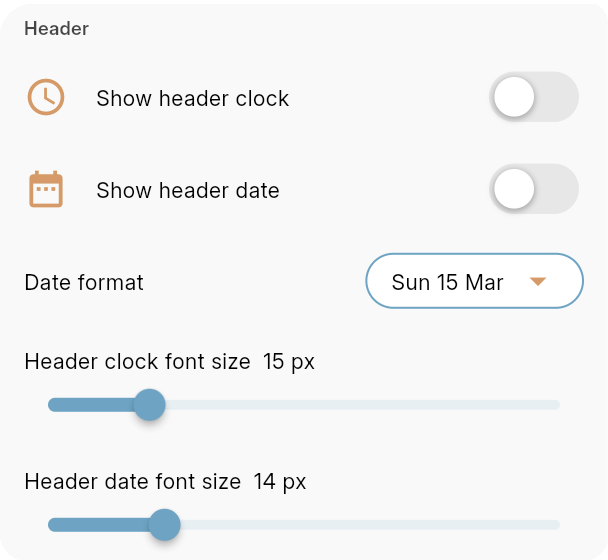
The Header options decide what supporting information appears above the calendar and how readable it should be on desktop, tablet or a shared reception screen.
- Show header clockadds the current time to the calendar header. This is useful on a reception screen or shared planning display.
- Show header dateadds the date to the header, andDate formatchooses how that date is written.
- Header clock font sizeandHeader date font sizetune readability without changing the rest of the calendar.
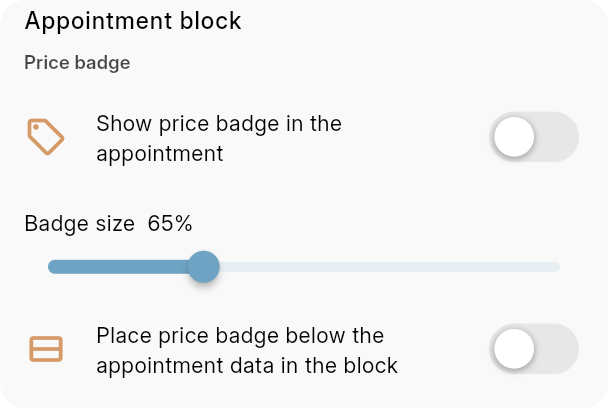
Decide where the price badge should sit
The appointment block layout controls how much room remains for service, staff and client text inside each appointment.
- Place price badge below the appointment data in the blockmoves the badge away from the top of the card.
- Use the lower badge position when the appointment title, service or client name needs the first line of the card.
- Use the normal badge position when payment status must be visible immediately while scanning the calendar.
Show appointment dots, avatars and resource width
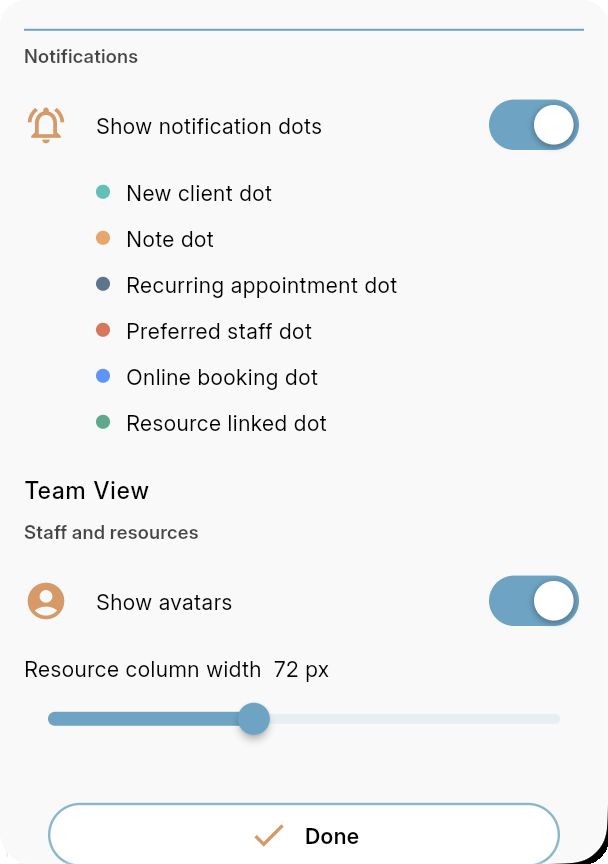
Notification dots add compact appointment signals, and Team View settings change how staff and resource columns are shown.
- Show notification dotsenables colored dots on appointment blocks for quick recognition.
- New client dotmarks first-time clients.Note dotmarks appointments with notes that staff should read.
- Recurring appointment dotmarks repeating bookings.Preferred staff dothighlights bookings tied to a preferred staff member.
- Online booking dotshows appointments created via the online booking flow.Resource linked dotshows bookings connected to a room, device or other resource.
- Show avatarsdisplays staff avatars in team view.Resource column widthcontrols how much horizontal space each resource column uses.
- TapDoneafter changing settings so the calendar can apply the new layout.
Bookairy apps
Use Bookairy on every platform.
Download the Bookairy app for your preferred device.



The browser version is a convenient way to get started quickly.
For daily use, better performance and a native feel, download an app.
Link to company portal